 Klango
Runners
A Runner is a headless process that polls your Management server for pending jobs and executes bots on the machine where it runs. You can have as many runners as you need — on your laptop, a VM, a server, or anywhere Python runs.
Setup
The official installer (install.ps1 on Windows, install.sh on Linux) already registers the Runner to start with the OS automatically. It just needs a backend URL and API key before it can do anything.
On Windows, the installer defaults to Interactive Mode: Windows auto-logs into an account you choose at every boot, and a Scheduled Task starts KlangoRPA.Runner.Tray.exe there (tray icon, no console window — see Tray Icon). This is deliberate, not a workaround: a classic Windows Service always runs in Session 0, which has no desktop at all — any window a bot opens (a headed Playwright/Selenium browser, a pyautogui or tkinter dialog, anything GUI-driven) is invisible there, even though the process runs and "completes" without any error. Interactive Mode runs the Runner in a real, visible session instead, exactly as if you were logged in yourself — no browser visibility trick needed. That session is then dedicated to running bots; avoid logging in as someone else or locking the screen on that machine while bots may be running.
If every bot on a given machine is headless/background-only (no browser, no GUI library), you can opt back into the old, simpler Windows Service model instead by passing -RunnerInteractive:$false to the installer.
On Linux, the Runner is registered as a systemd --user service (auto-enabled, with linger so it survives reboot without a login session) — unaffected by any of the above.
klango-runner, KlangoRPA.Runner.exe) only work as typed after install.sh / install.ps1 has been run — that's what puts a launcher on your PATH and registers the OS service. If you haven't installed yet, either run the installer first (recommended — see below), or call the binary directly from where you extracted it, using its path:# Linux — from inside the extracted folder cd runner chmod +x KlangoRPA.Runner # only needed once ./KlangoRPA.Runner --setup ./KlangoRPA.Runner # Windows — from inside the extracted folder (PowerShell) cd runner .\KlangoRPA.Runner.exe --setup .\KlangoRPA.Runner.exeA bare
KlangoRPA.Runner --setup (no ./ and no path) fails with command not found on Linux because the shell only looks in PATHfor bare names — the extracted folder isn't on it. Running the binary this way is a foreground process only (no service/auto-restart); to run as a background service you need the installer.Recommended — run the installer
From the extracted package folder:
# Linux
sudo ./install.sh --runner        # system-wide (recommended)
./install.sh --runner --user      # user-only, no sudo

# Windows (PowerShell, run as Administrator, from the extracted folder)
.\install.ps1 -Runner
This installs the Runner to a stable location and adds klango-runner (Linux) / KlangoRPA.Runner.exe shortcut (Windows) to your PATH.
On Windows, it also prompts for the Windows account to auto-logon as (Interactive Mode, the default — see above) and registers the Scheduled Task used in Step 3 below. install.ps1 needs to run elevated(as Administrator) for this — both the auto-logon registry keys and the Scheduled Task registration require it; a non-elevated run fails with "access denied" errors on both. Pass -RunnerInteractive:$false instead to skip all of that and register the older, simpler Windows Service (still needs elevation, still prompts for a password — this time for the service's logon account, defaulting to LocalSystem if you cancel that prompt).
On Linuxit's automatic — no prompt needed, the service already runs as your own user account.
Step 1 — Generate an API key
In the Web Console, go to Runners → New Runner. Give it a name (e.g. my-laptop), click Create, then copy the API key shown. This key is shown only once — save it now.
Step 2 — Run the setup wizard
# Windows
KlangoRPA.Runner.exe --setup

# Linux
klango-runner --setup
Enter the Management server URL (e.g. http://localhost:8766 or your server's address) and the API key from Step 1. The wizard writes a config file at ~/.config/KlangoRPA/remote-runner.json (Linux) or %ProgramData%\KlangoRPA\remote-runner.json (Windows, machine-wide — readable regardless of which account the Runner ends up running as, so it doesn't matter which account runs this step). On Linux, run this as your normal user; sudois not needed and, depending on your system's sudo configuration, may not even land in the same file the service reads.
Step 3 — Start the Runner
Linux — restart the service to pick up the new config:
# system-wide install
sudo systemctl restart klango-runner

# --user install
systemctl --user restart klango-runner
Windows, Interactive Mode (default) — just reboot. Windows auto-logs into the account you chose during install and the Scheduled Task starts the tray shell (KlangoRPA.Runner.Tray.exe) automatically — see Tray Icon. To test without a full reboot cycle, trigger the same task manually instead:
Start-ScheduledTask -TaskName "KlangoRPA Runner"
Windows, Service mode (only if you installed with -RunnerInteractive:$false) — restart it directly:
Restart-Service KlangoRPARunner
The Runner appears as Online in the Web Console within a few seconds of the service starting.
%ProgramData%\KlangoRPA, which the Runner itself writes to (config, artifact cache, and the pid file used to detect duplicate processes) — only Administrators/SYSTEM can write there by default, and Interactive Mode deliberately runs the Runner as a normal, non-elevated user (see the note about why above). One-time fix, in an elevated PowerShell (replace <account> with the auto-logon account):icacls "C:\ProgramData\KlangoRPA" /grant "<account>:(OI)(CI)M" /TRe-running
install.ps1 -Runner also fixes this on any future install.-RunnerInteractive:$false) and skipped the password prompt, or installed non-interactively with -NoAccountPrompt? The service is registered as LocalSystem, which is fine — the config file lives at %ProgramData%\KlangoRPA\remote-runner.json (machine-wide), which LocalSystemcan read without any extra setup. A named account is only worth configuring if a bot specifically needs that account's own profile or network identity:sc.exe config KlangoRPARunner obj= "%USERDOMAIN%\%USERNAME%" password= "<your-windows-password>" Start-Service KlangoRPARunner
KlangoRPA.Runner manually while the service is already running. If you start multiple Runners, create a separate key and config for each one.Troubleshooting — Runner shows Offline / bot won't run
--setup only writes the config file and exits — it does not start the Runner. A successful Testing connection... OK message just means the API key was valid; the Runner still shows Offline until the process is actually running and sending heartbeats.
- Installed via
install.sh/install.ps1? Restart it so it picks up the config (see Step 3 above) — check withsudo systemctl status klango-runner(Linux, system-wide install),systemctl --user status klango-runner(Linux,--userinstall),Get-ScheduledTaskInfo -TaskName "KlangoRPA Runner"(Windows, Interactive Mode — checkLastTaskResult), orGet-Service KlangoRPARunner(Windows, Service mode). If neither exists, you're on the raw-binary path below instead. journalctl -u klango-runner -n 20 --no-pager(Linux) still saysRunner not configuredright after you ran--setupand confirmed it saved? On a system-wide install from before this doc was updated, the service may still be running asroot, which reads its config from/root/.config/KlangoRPA/remote-runner.json— a different file from the one your interactive--setupwrote (your own~/.config/...), even if you ran it withsudo(on many systemssudodoesn't reset$HOME, so it writes to the same user file regardless). Confirm which account the service runs as, then pin it to yours:systemctl show klango-runner -p User # empty output = running as root sudo sed -i '/^\[Service\]/a User=<youruser>\nGroup=<youruser>' /etc/systemd/system/klango-runner.service sudo systemctl daemon-reload sudo systemctl restart klango-runner
Re-running the current installer (sudo ./install.sh --runner) does this automatically and is the simpler fix if you have the package handy.- Just extracted the package and ran
./KlangoRPA.Runner --setup(orklango-runner --setup) directly, without running the installer at all? Run it again without--setupto actually start it, and leave that terminal open — it's a foreground process with no service behind it, so closing the terminal kills it:./KlangoRPA.Runner # or, if installed on PATH: klango-runner
The Runner should flip to Onlinein the Web Console within a few seconds of the process starting. Once it's online, re-run any bot that previously failed to dispatch.
Tray Icon (Windows)
Interactive Mode starts the Runner as a small system tray icon(near the clock), not as a big console window. Bots still run normally — if a bot opens a browser or any other window, that window is still visible. Only the Runner's own console is hidden.
Recommended — let the installer do it
When you run install.ps1 with Interactive Mode (the default), Windows already registers Scheduled Task KlangoRPA Runner. That task launches KlangoRPA.Runner.Tray.exe at logon. You do not need a Startup-folder shortcut for the Runner — just finish --setup, then reboot (or run Start-ScheduledTask -TaskName "KlangoRPA Runner").
Right-click the tray icon for Open Logs, Restart Runner, or Exit. If you don't see it, open the ^ overflow area next to the clock.
Which file is the tray?
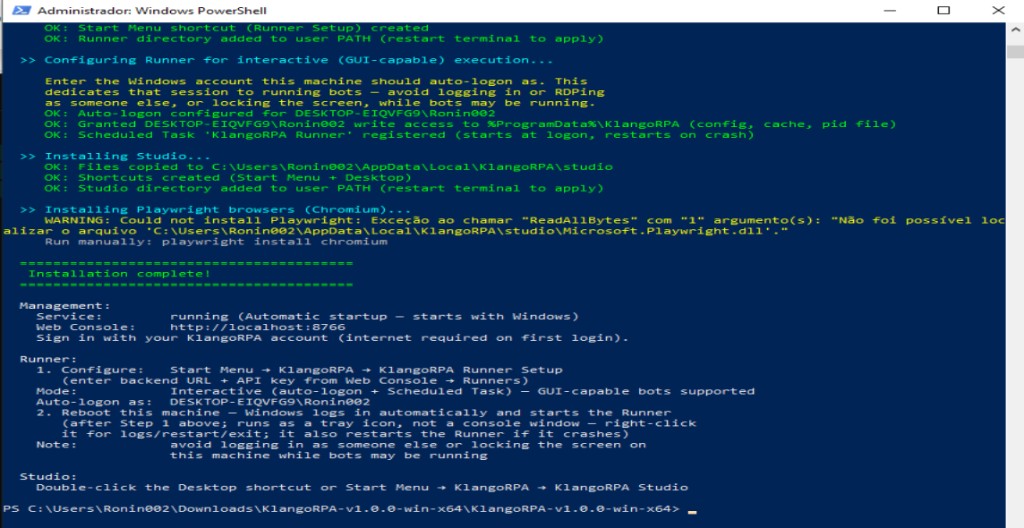
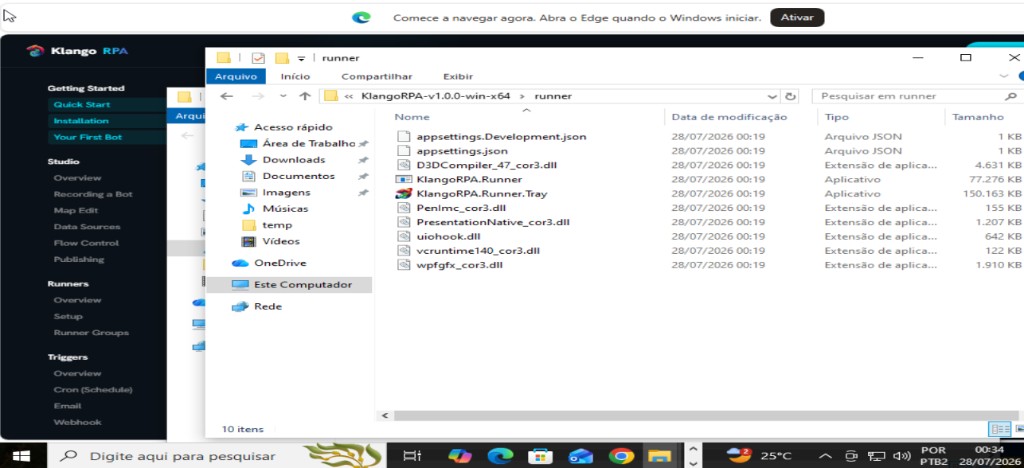
In the package (and under %LocalAppData%\KlangoRPA\runner after install) you will see two apps side by side:
KlangoRPA.Runner.Tray.exe— tray shell (this is what should start with Windows)KlangoRPA.Runner.exe— the real Runner (started hidden by the tray; also used by Runner Setup /--setup)
Optional — Startup folder shortcut
Prefer the Scheduled Task. Use a Startup shortcut only if you skipped Interactive Mode registration, or you intentionally want Startup instead of the task. Steps:
- Open File Explorer to
%LocalAppData%\KlangoRPA\runner. - Right-click
KlangoRPA.Runner.Tray.exe→ Create shortcut (or send to Desktop), then rename it e.g. KlangoRPA Runner. - Press Win+R, type
shell:startup, press Enter. - Copy that shortcut into the Startup folder that opens.
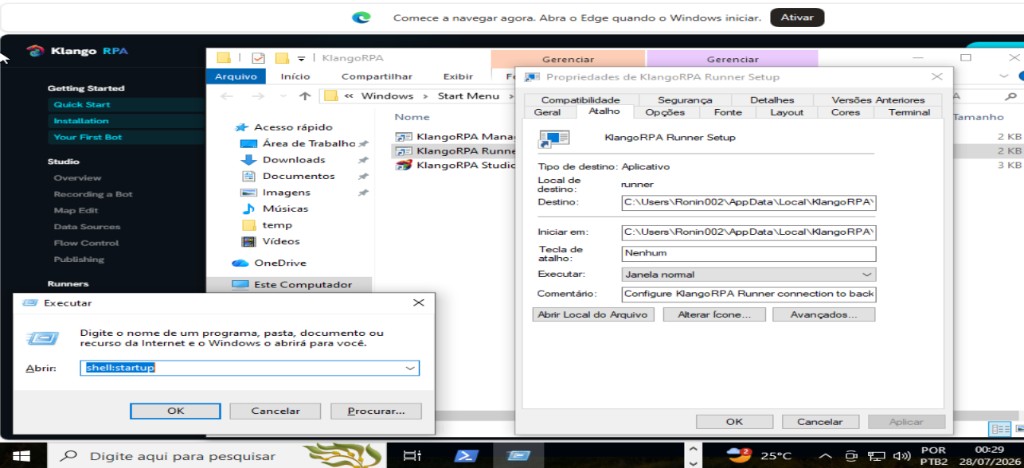
KlangoRPA.Runner.exe and is only for the one-time --setup wizard (backend URL + API key). Starting it at logon opens a visible console and bypasses the tray. Also avoid running both the Scheduled Task and a Startup shortcut for the same Runner — you can end up with two processes fighting over the same API key.Python & Library Requirements
Runners execute bots using the Python interpreter on the Runner machine. Python 3.9 or later is required. The Runner installs bot dependencies automatically via pip before each run.
Library allowlist
For security, the Runner only installs Python packages approved in your workspace's library allowlist. By default, 12 common packages are pre-approved:
playwrightopenpyxlpandasrequestsbeautifulsoup4lxmlpsycopg2-binarySQLAlchemyPillowpython-dotenvpyautoguipynputTo add more packages, go to Web Console → Libraries. Users with the Dev role or above can propose packages; users with the Adminrole can approve them.
Desktop bots — extra requirements
- Windows desktop bots:
pywinauto,pywin32,comtypes(pre-approved) - Linux desktop bots:
xdotoolandwmctrlmust be installed as OS packages (not via pip)
Bot Compatibility
Each bot has an Automation Kind: Web, Desktop Windows, or Desktop Linux. The Management server checks the kind against the Runner's OS before dispatching a job.
| Bot Kind | Compatible Runners |
|---|---|
| Web | Any (Windows or Linux) |
| Desktop Windows | Windows Runners only |
| Desktop Linux | Linux Runners only |
If you try to dispatch a Desktop Windows bot to a Linux Runner, the job is rejected immediately with an error — no Python is executed.
Runner Groups
Runner Groups let you dispatch bots to a pool of runners. The server claims the job to whichever available runner in the group picks it up first — simple load balancing without any extra configuration.
Create a group:
- Go to Web Console → Runner Groups → New Group.
- Add one or more Runners to the group.
- When dispatching a bot (Run modal, Queue, Trigger, Workflow), select the Group from the runner picker.
The group picker shows N of M online so you know how many runners are available before dispatching.
Background Mode
By default, only one bot runs on a Runner at a time (the foreground slot). Background Mode lets a bot run concurrently alongside foreground bots, in a separate slot (up to 3 background bots simultaneously per Runner).
Enable Background Mode on a bot via Web Console → Bots → gear icon → Bot Config → Background mode.
Visual Analysis for imported bots
When Background Mode is enabled, the Runner places a klango.py helper module next to your script before execution. Imported / hand-written bots can use it to emit the same screenshot and page-source markers as Studio-generated bots, enabling the 📸 Visual Analyse button in History:
from klango import capture_on_error

with capture_on_error(page):
    # ... your bot logic ...
The helper is only written for Background Mode bots. Standard foreground bots are not affected and no file is added to their environment.
Imported Bots (Local Files)
If you have existing Python automation scripts you want to manage through KlangoRPA without re-recording them, you can import them as Imported bots. The script lives on the Runner machine's local filesystem rather than being uploaded to the server.
Hash verification
KlangoRPA can verify the integrity of imported scripts. After importing, click Re-sync in the Bot Config modal to have the Runner hash the file and send it back. Future runs display a Verified or Hash Mismatch badge in History.
Enable Strict Modeto abort runs when the hash doesn't match the last verified snapshot — protecting against unauthorized script changes.
Visual Analysis
To enable 📸 Visual Analyse on failed runs, enable Background Mode on the bot and wrap your automation with capture_on_error from the klango module — see the Background Mode section above for the code snippet.